
Download the HealthMetrics app, register with your email or a social account, then enter the Corporate Code from your HR team.
What you need before you start
- A smartphone running a reasonably current version of iOS or Android.
- An email address, or an account with Google, Apple, or similar.
- Your Corporate Code. A short, 6-digit unique code that links you to your employe given to you by your HR team.
Download the HealthMetrics App
The HealthMetrics app is listed as "HealthMetrics Global" in the App Store and Google Play Store or use one of the direct links below. Download it, open it, register with your email or a social account, then enter the Corporate Code given to you by your HR team. That's the full activation — no separate activation email needed.
Direct download links
Do not download our Legacy App
- We have moved away from our Legacy App since April 2026 and the app is now greyed out on both Apple App Store and Google Play Store.
First Time Registration & Login Step by step:
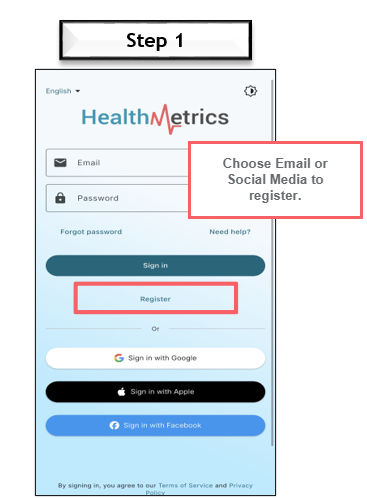
Step 1: Registration
After downloading the HealthMetrics app, you will need to register your account.
You can choose either one of the below registration method:
- Email registration, or
- Social login (Google / Apple / Facebook)
Step 2: Register Using Email (Example)
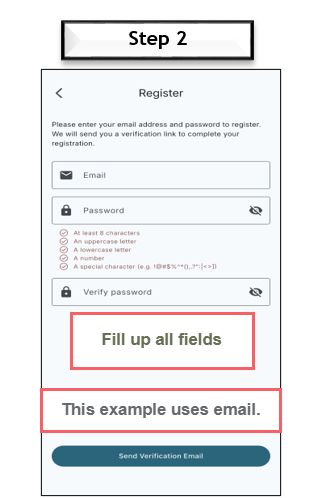
In this example, we use Email registration.
- Click Register
- Enter your details:
- Email address
- Password
- Ensure your password is strong (minimum requirements):
- At least 8 characters
- Includes uppercase & lowercase letters
- Includes numbers
- Includes special symbols
- Click Send Verification Email
Step 3: Verify Your Email
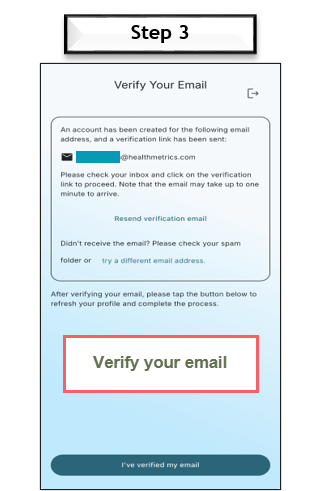
- Check your email inbox
- Click the verification link provided
Step 4: Account Verified
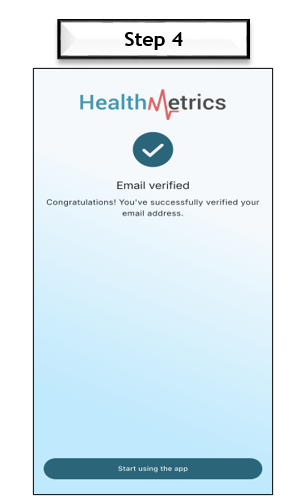
Once verified, you will see a message:
“Email verified”
You may now start using the app.
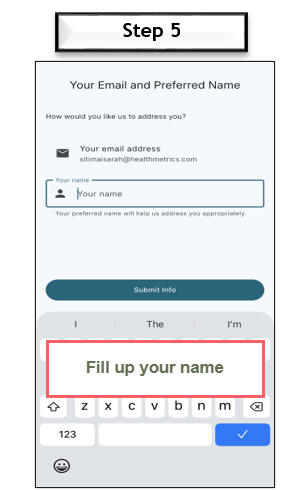
Step 5: Complete Your Profile
You will be prompted to enter your name. Please fill in the necessary and click Submit Info to continue.
Step 6: Access Homepage & Link Company Profile
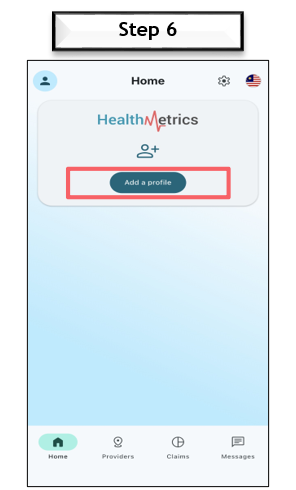
You will now reach the HealthMetrics App Homepage. Next, is to link your company profile to your HealthMetrics app! Click on Add Profile to start
Step 7: Link Your Company Profile
Fill in the required details:
- Registration Code (obtain this from your HR)
- Country (select based on your nationality)
- Identity Type (MyKad/Army)
- Enter ID / IC / Passport Number
- Date of Birth [mm/dd/yyyy]
- Tick ✅I agree to Terms of Service & Privacy Policy
Important – Country Selection
Please ensure the correct country is selected:
- Select Malaysia (MY) if your company/employer is in Malaysia or you are a Malaysian employee
- Select Singapore (SG) if your company/employer is in Singapore or you are a Singaporean employee
For Local/International members, always ensure the correct country is selected before continuing.
If you are unsure - please contact your HR.
If you still face an error to link your profile:
- There could be a possibility that your HR has not added you / added you with incorrect details into the HealthMetrics Corporate Portal - thus throwing an error during linking of profile.
Step 9: Successful Linking
Once your profile is successfully linked, you will be able to see your e-card on the homepage.
This means your HealthMetrics app is now setup for your usage!
Note. If you are a principal member and your company provides dependent coverage, you will also be able to view your dependants’ e-cards (where applicable).
Common Issues
- You cannot find the app in the store — search for "HealthMetrics Global", not "HealthMetrics" alone.
- Registration fails — call our support line. We can help straightaway.
- The Corporate Code doesn't work — double-check it with your HR team. If they confirm it is correct and the app still rejects it, call us.
- You can't remember which email you used — call support and we can look it up.
Need help?
Call +60 16-699 9464 (24 hours), use the Online Chat on the right of this page, or email corp-support@healthmetrics.com.
Related articles
- Welcome: Your Employee Healthcare Benefits with HealthMetrics
- M-002: First steps — what to do in your first week.
- M-021: Getting your member e-card.
- M-023: Resetting your password.
Comments
0 comments
Please sign in to leave a comment.